


Your first signature starts here.
Prepare your account once. Then follow four clear steps for each document you sign.
One account.
Your key to QuickSign.
You need a QuickPass account to sign in to QuickSign. QuickPass is BCC’s mobile app for passwordless authentication.
Create your account, verify your identity, and register your device. Then you’re ready to sign in.


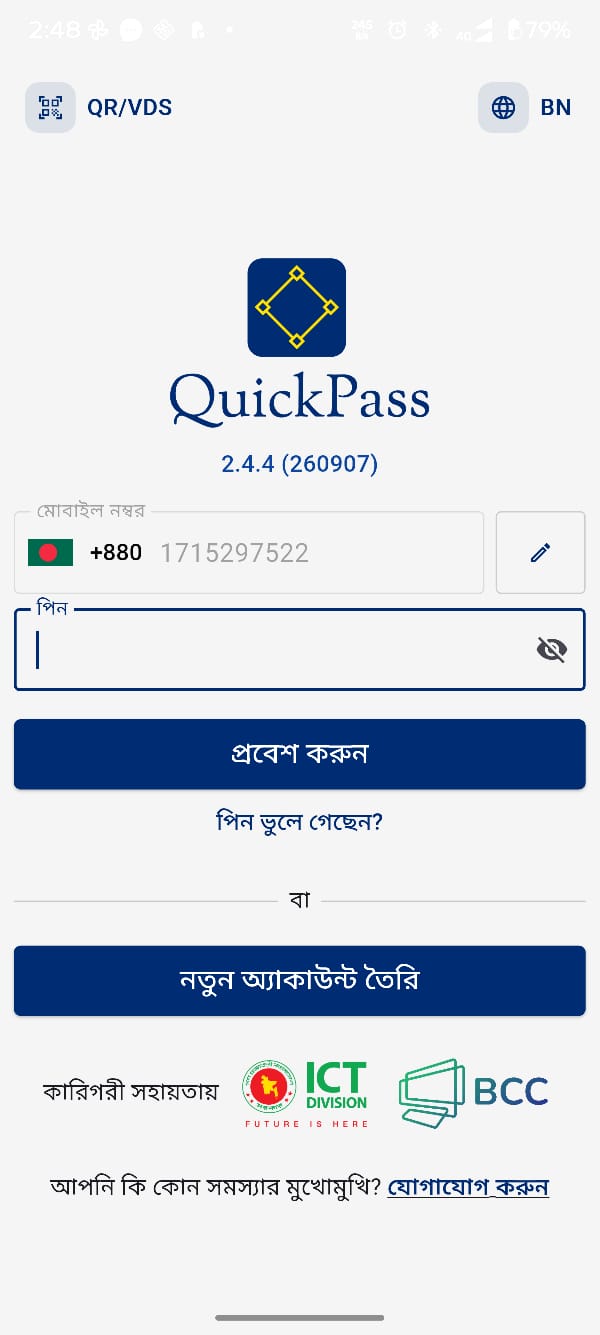 QuickPass login
Illustrative view
Complete the setup before uploading
- Install QuickPass from the official Android or iOS listing.
- Create an account and complete the identity verification requested by the app.
- Complete device registration and any certificate setup required for your account.
- Have your registered phone connected to the internet when you sign.
Follow the QuickPass registration guide for each step, or the official BCC-CA manuals. Setup requirements can vary with your account and service.
1. Upload your document
Sign in to QuickSign using your prepared QuickPass account. Choose the document you want to sign and follow the portal’s upload instructions. Check that you have the right version before continuing.
2. Review the document and signing request
Read the complete document, check who needs to sign, and confirm any signing fields or workflow details presented in the portal. If something is incorrect, resolve it before you authorise a signature.
3. Authorise with QuickPass
Review the request on your registered phone and complete the authorisation steps shown in QuickPass. Approve only a request you recognise. A notification alerts you to a request; receiving it does not itself mean you have signed.
4. Download and verify
Return to QuickSign to check the result and download the signed document. Use a compatible verifier to inspect the signature and certificate status. Share the signed file itself so the recipient can verify it.
Open the official signature verifier ↗Make your next signature digital.
Have your QuickPass account ready? Take the next step.